
A tour · TryMyPro for Pros
Set up your business
Dana already uses TryMyPro as a customer. Watch her put her cleaning business on TryMyPro for Pros: what it does, a plan, a card, and it is live.
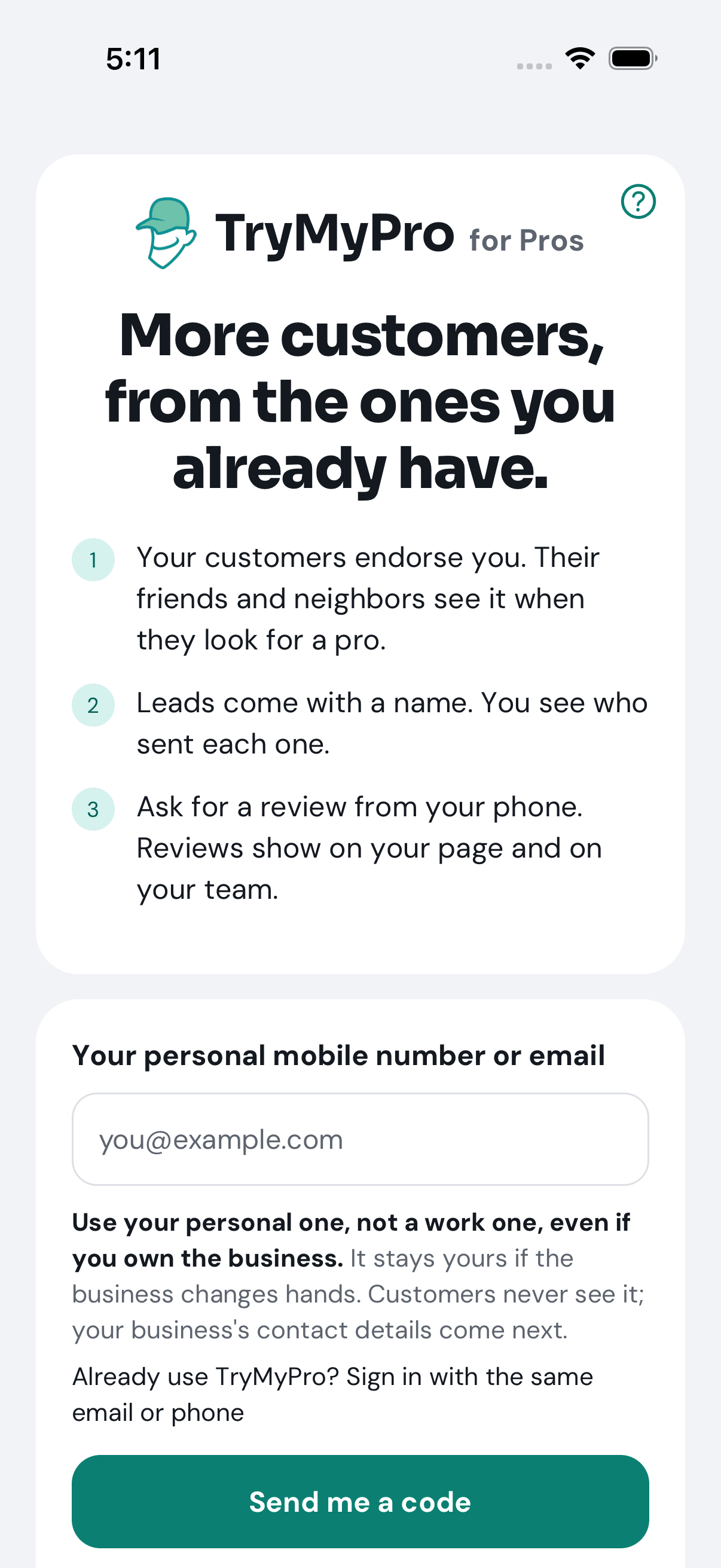
1 of 15 Dana opens TryMyPro for Pros and types the email she already signs in with.
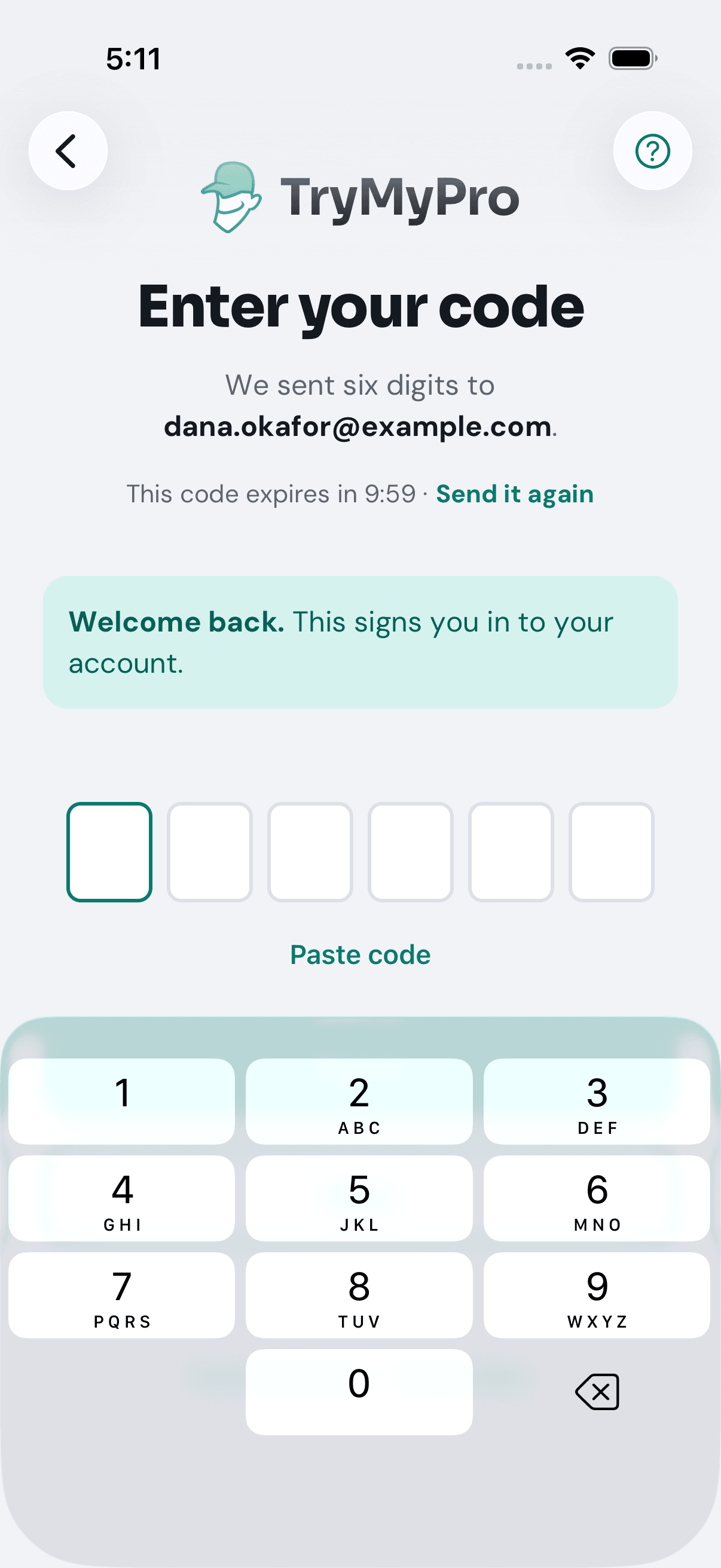
2 of 15 Six digits arrive by email. There is no password.
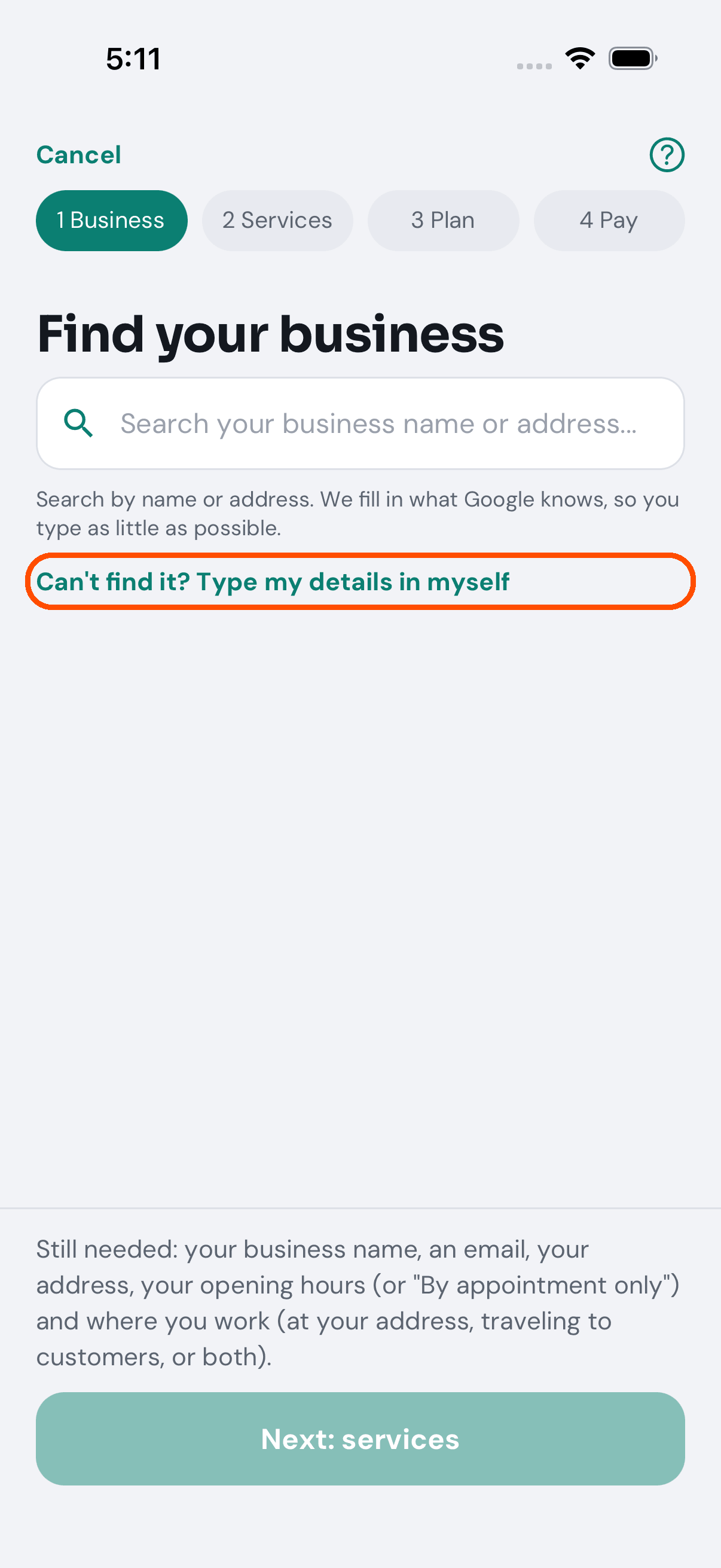
3 of 15 Four steps: Business, Services, Plan, Pay. Dana types her details in herself.
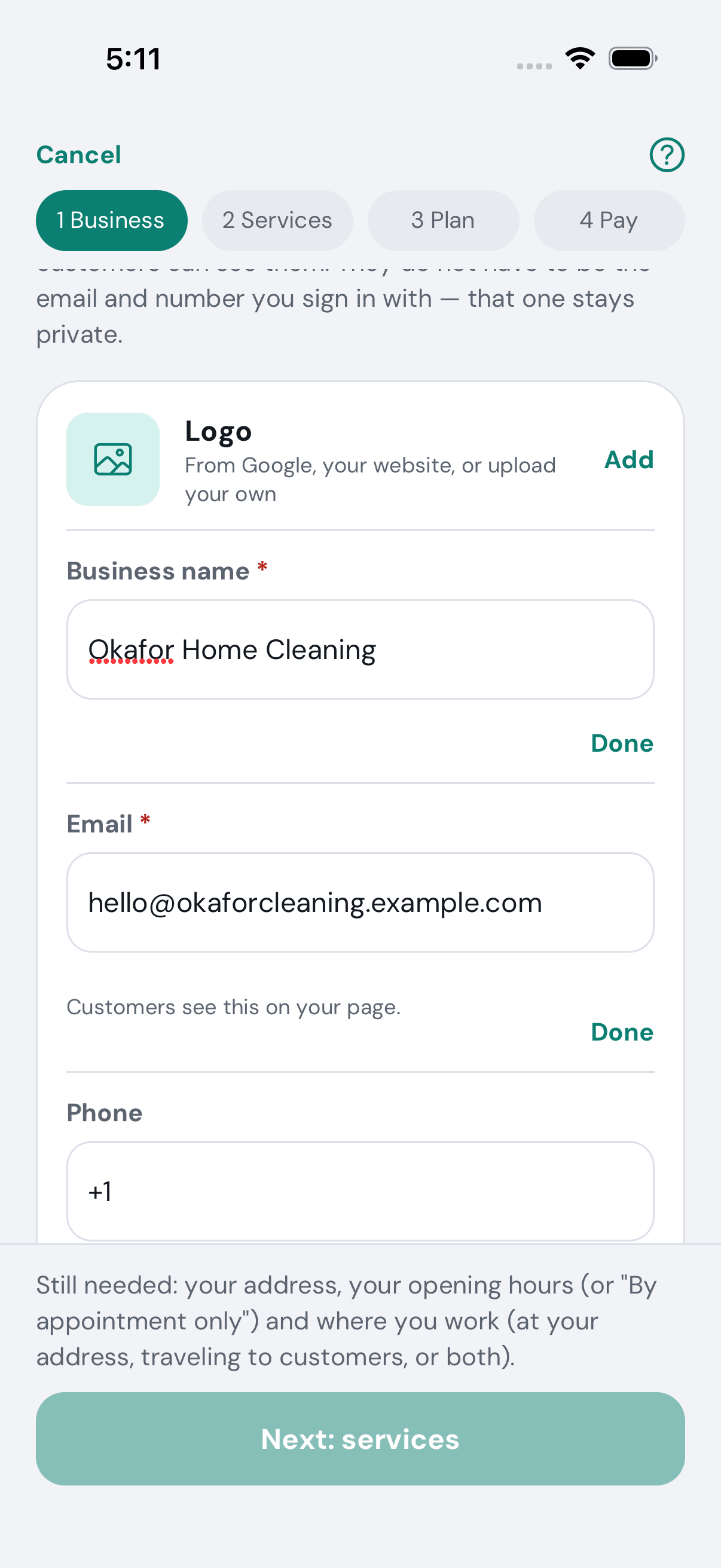
4 of 15 The business’s name and the email customers will see. They do not have to be the ones she signs in with.
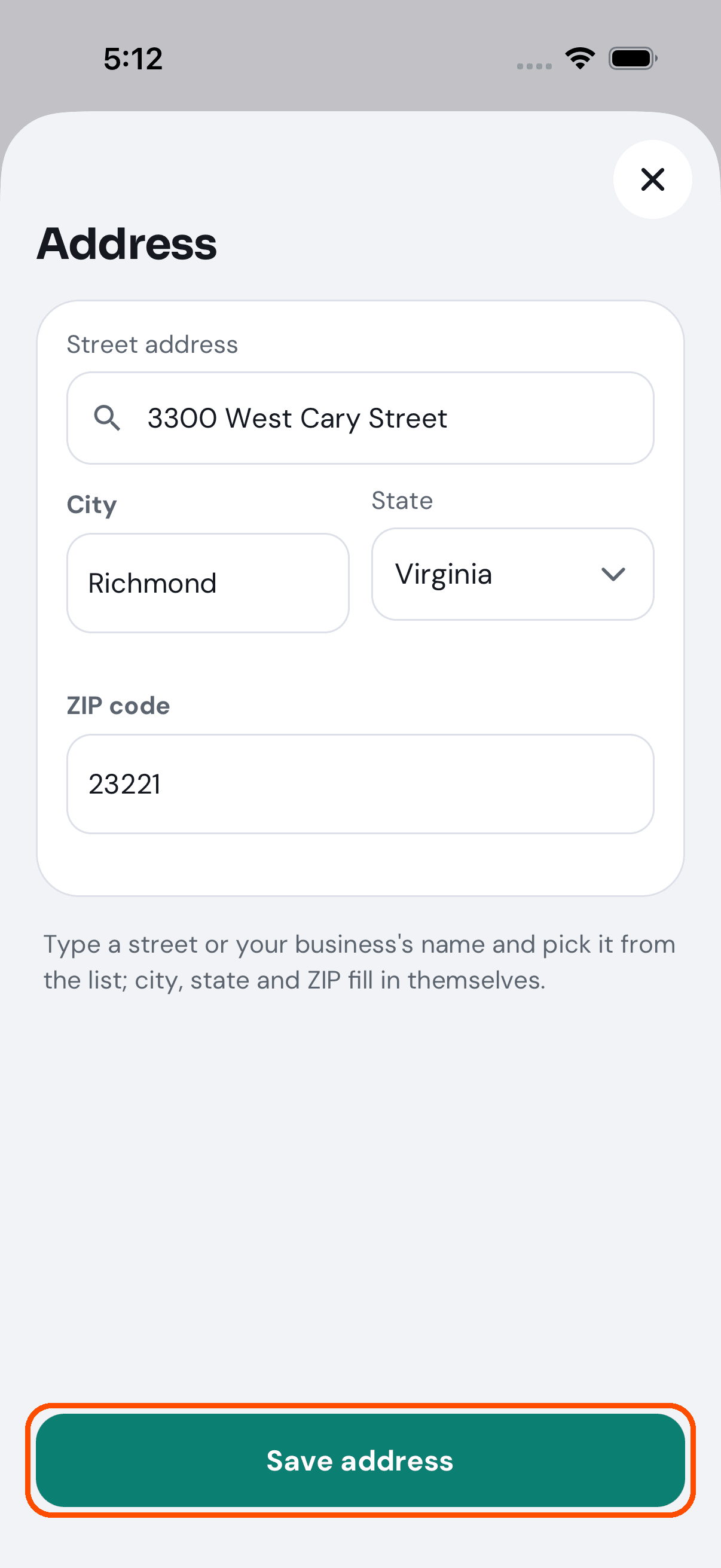
5 of 15 She starts typing the address and picks it from the suggestions; city, state and ZIP fill themselves.
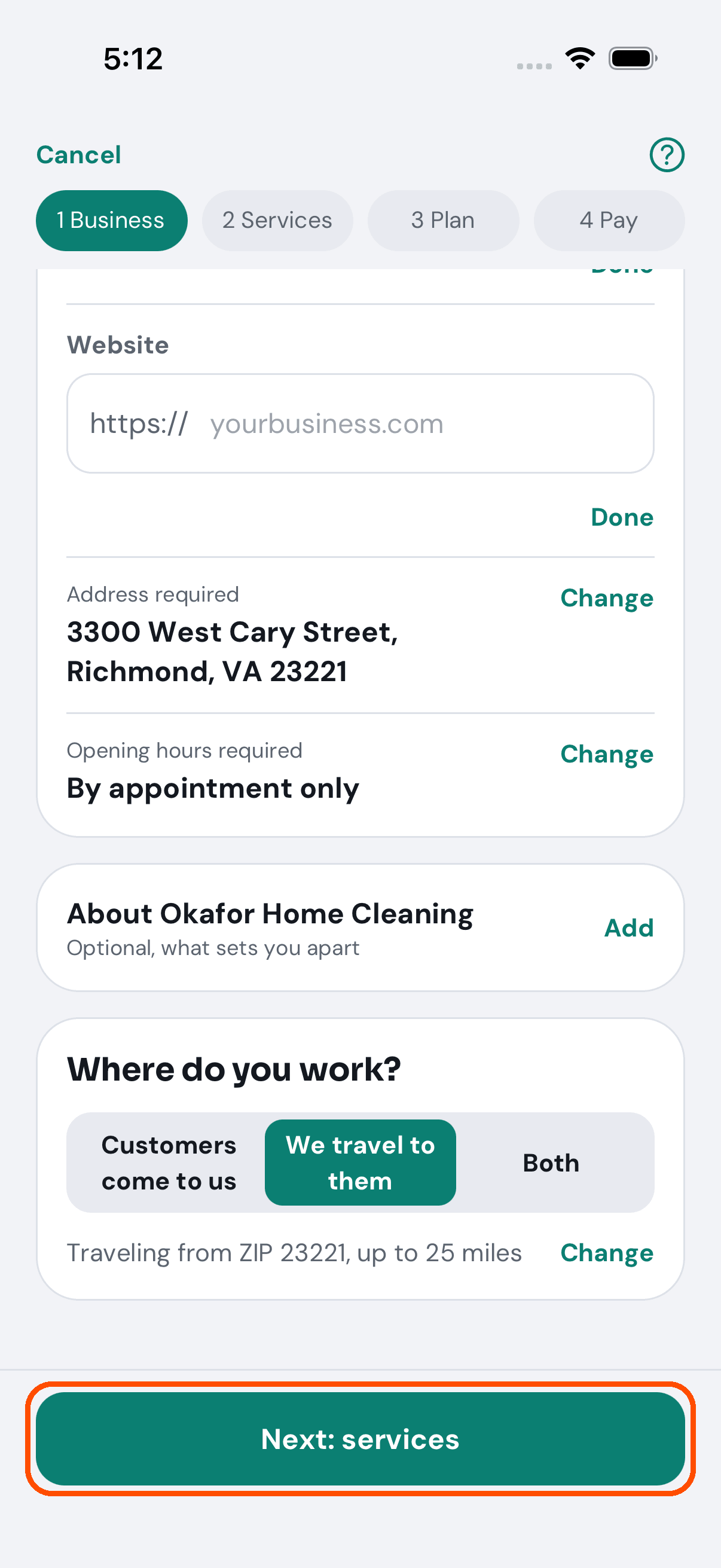
6 of 15 Opening hours (here, by appointment) and where she works: she travels to her customers.
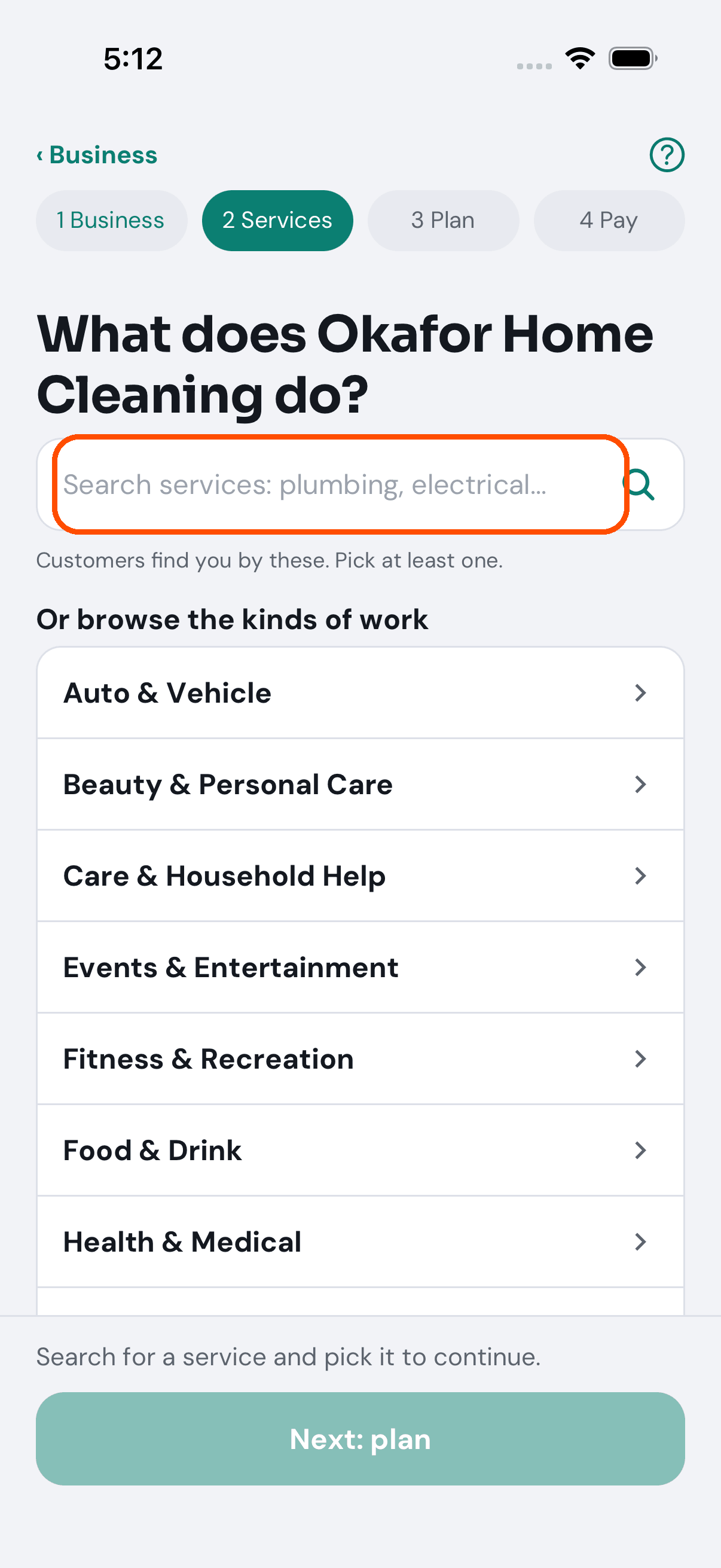
7 of 15 Next, what the business does. Customers find her by these services.
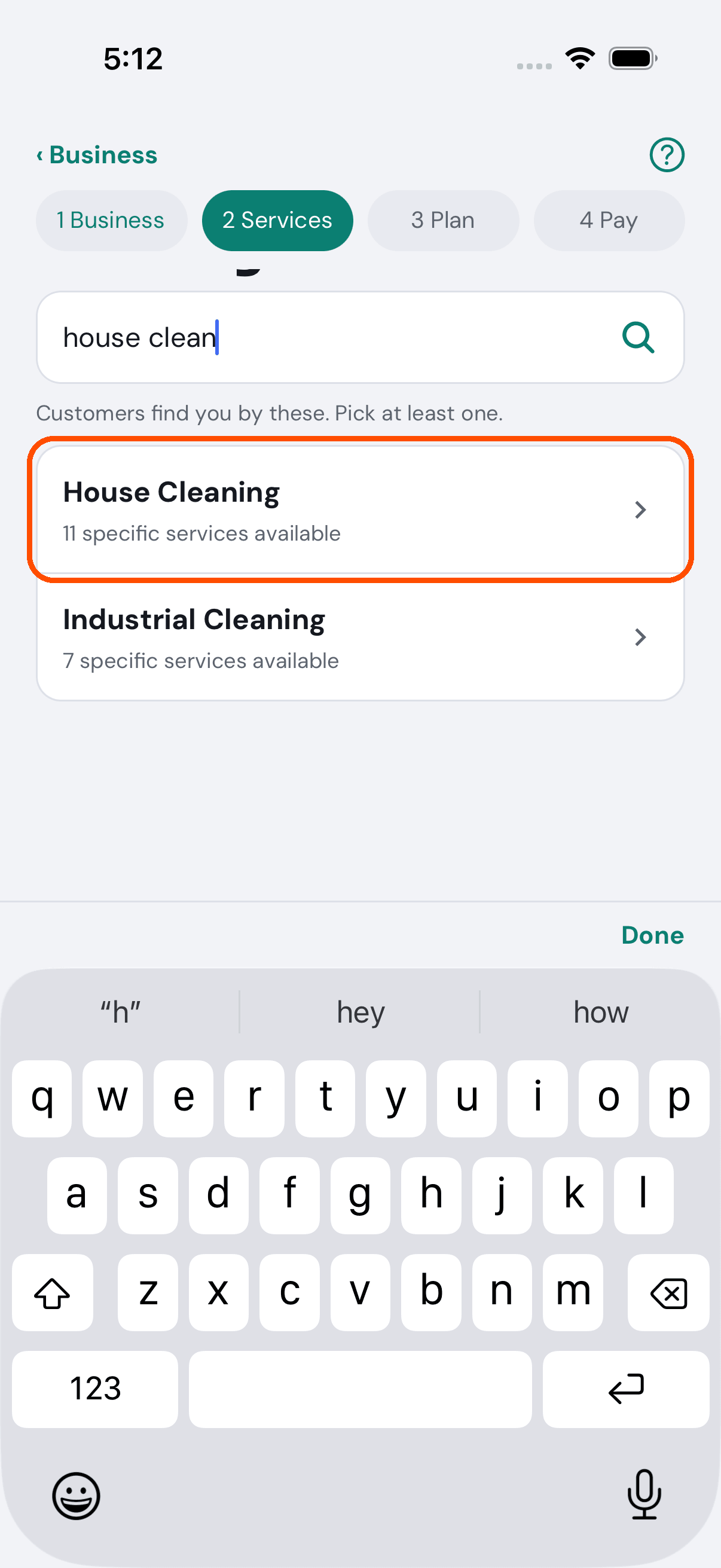
8 of 15 She types “house clean” and TryMyPro finds the trade.
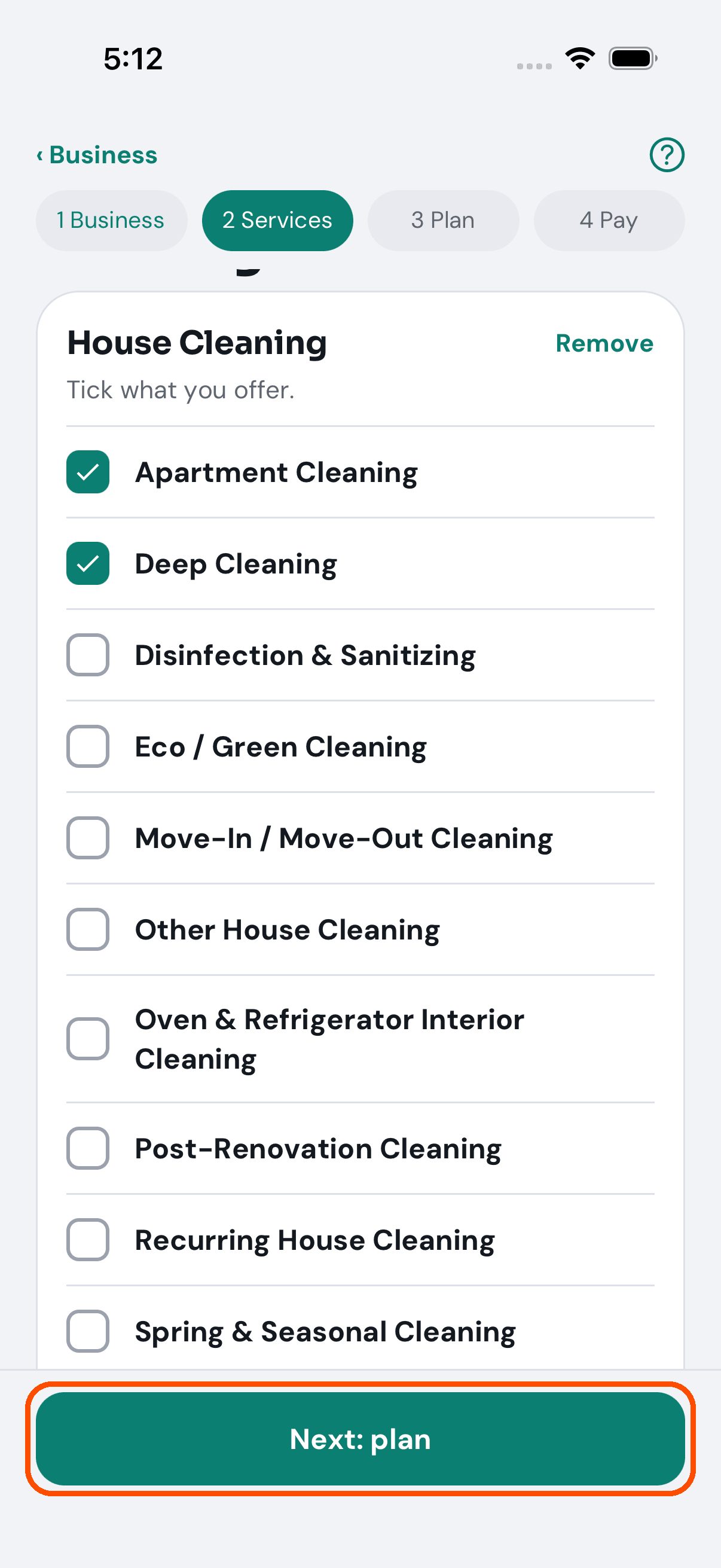
9 of 15 She ticks what she offers.
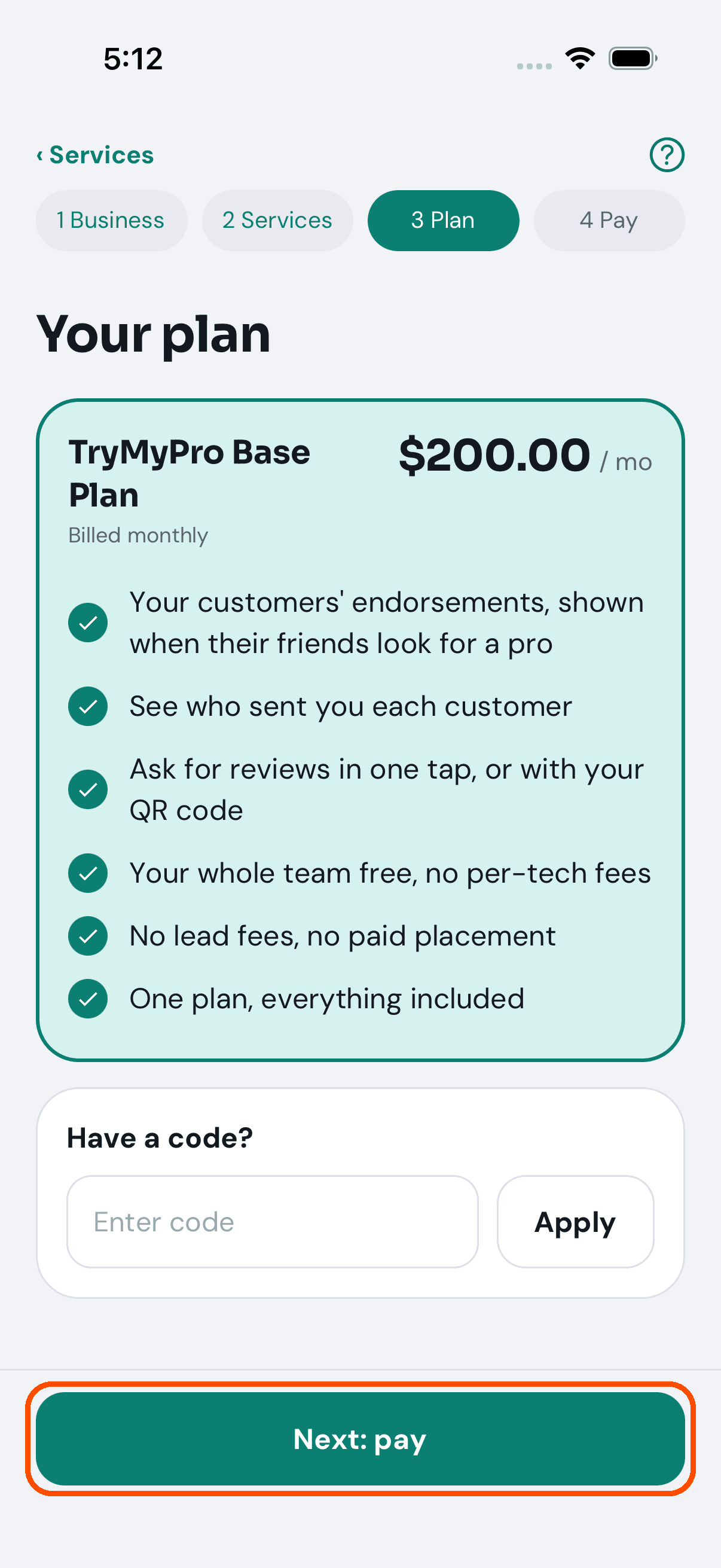
10 of 15 Her plan and what it includes. A code goes here if she has one.
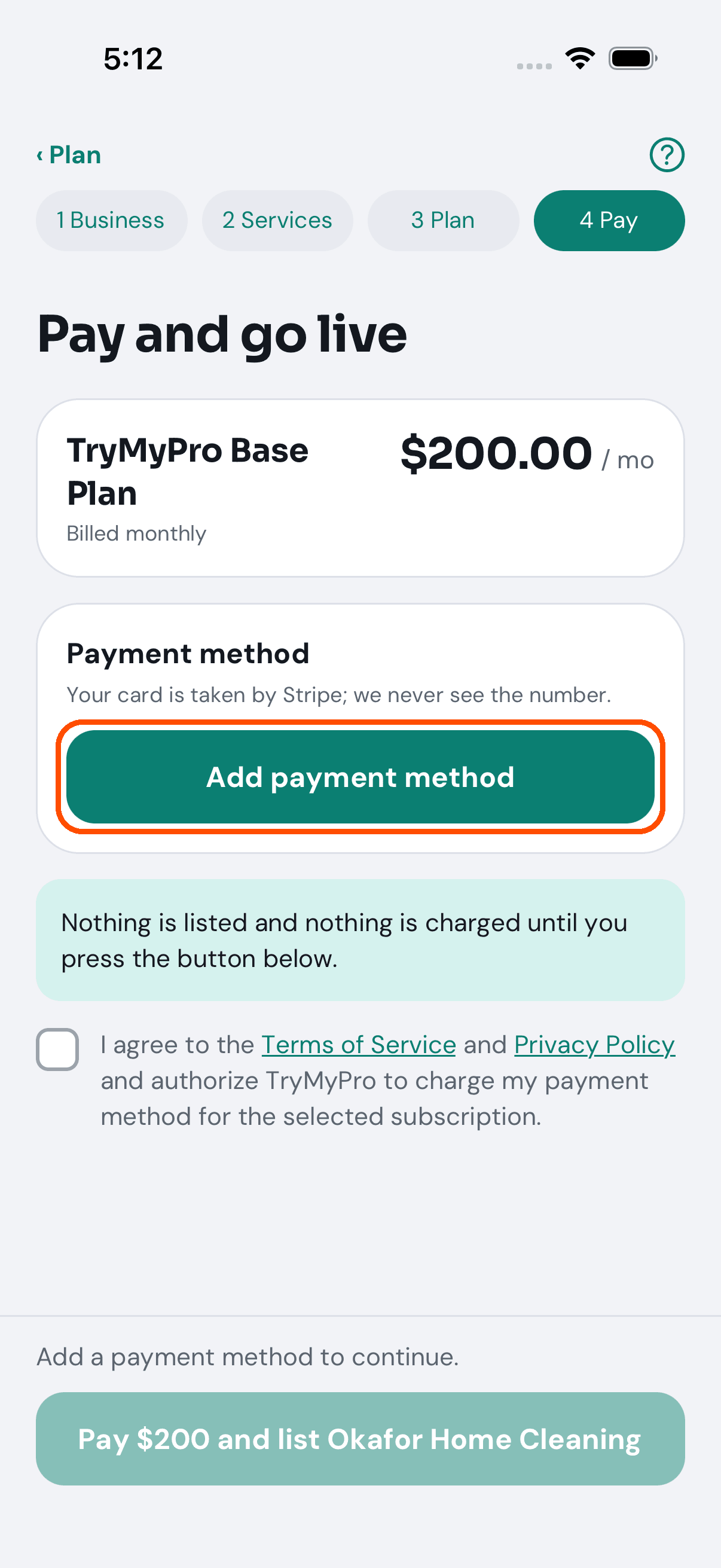
11 of 15 Nothing is listed or charged until she presses the last button. First, a card.
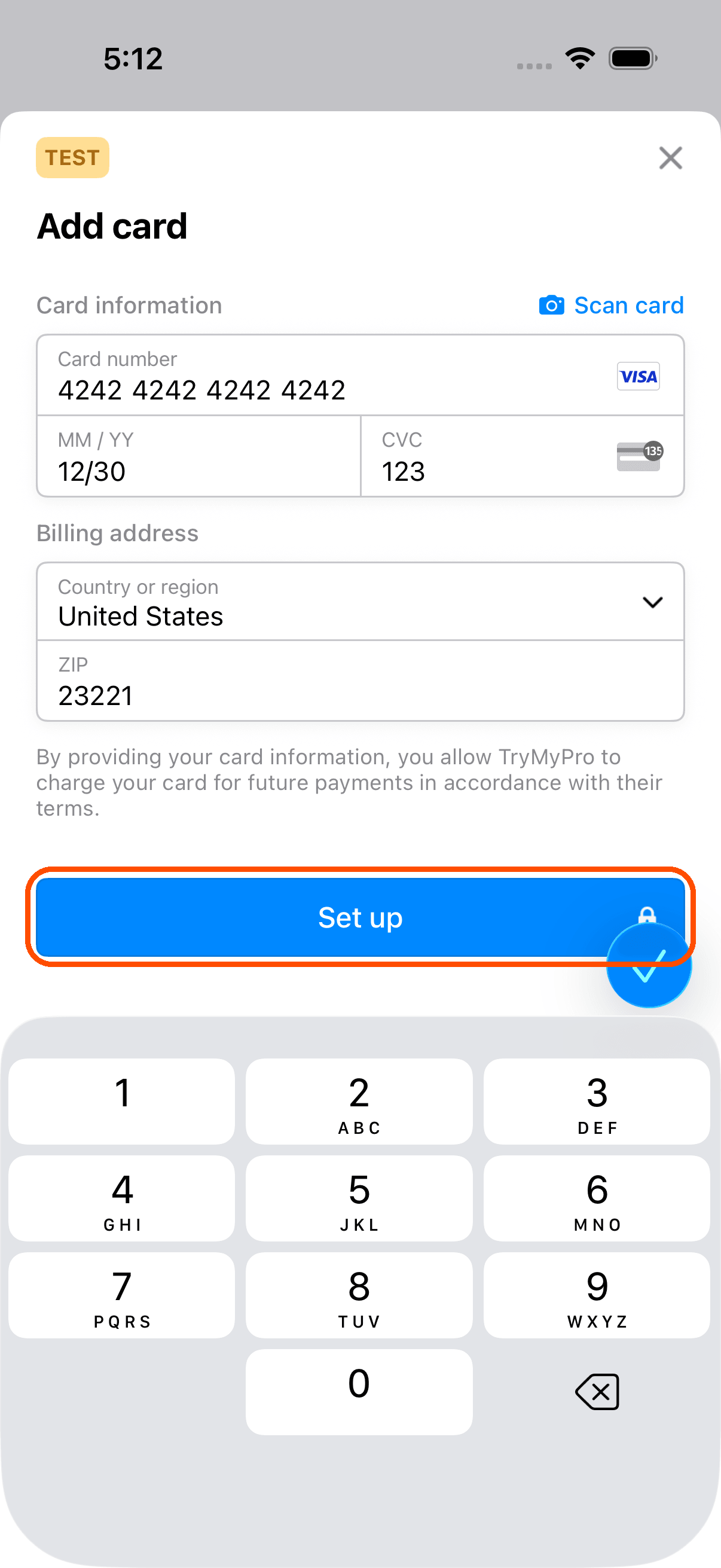
12 of 15 The card goes into Stripe’s own form; TryMyPro never sees the number. (This tour uses Stripe’s test card.)
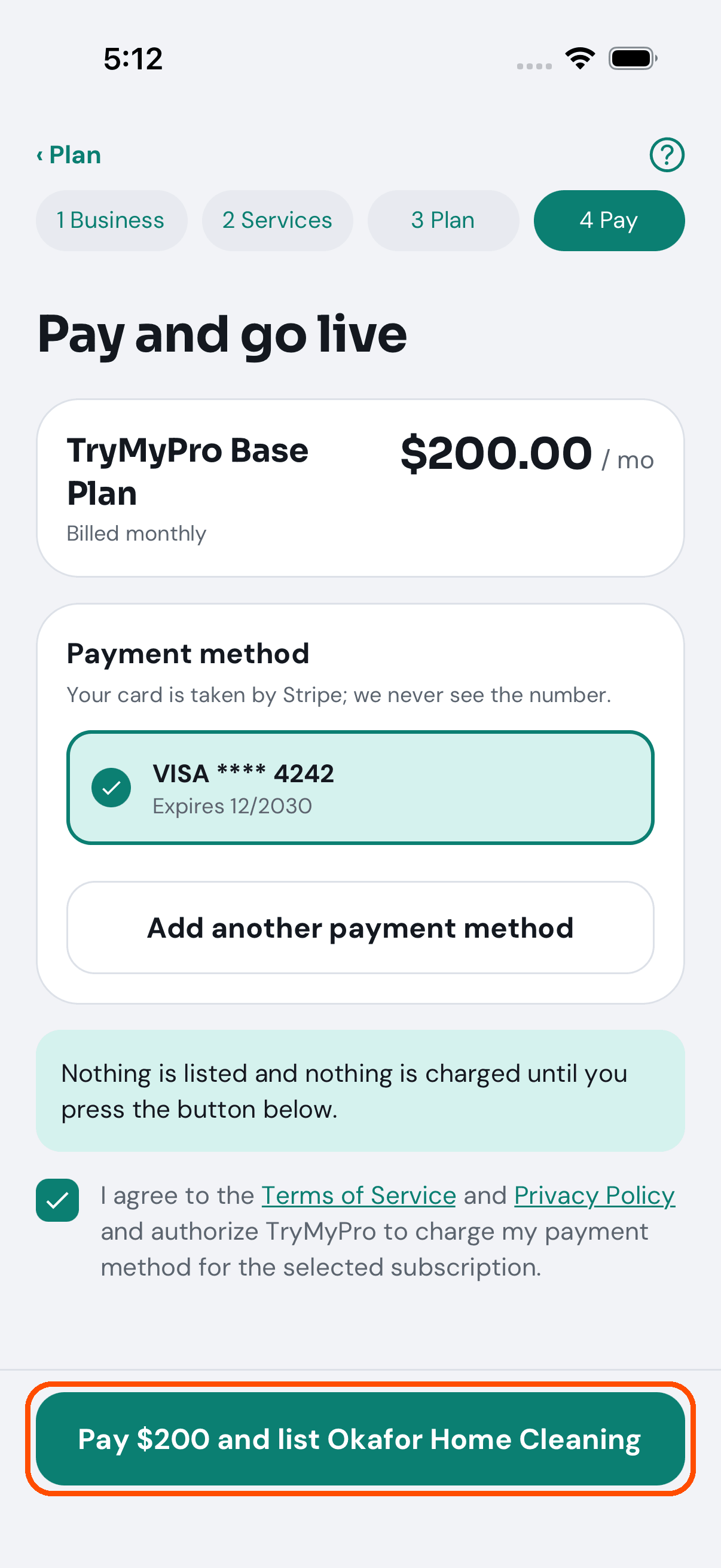
13 of 15 She agrees to the terms, and the button says what happens: pay, and list Okafor Home Cleaning.
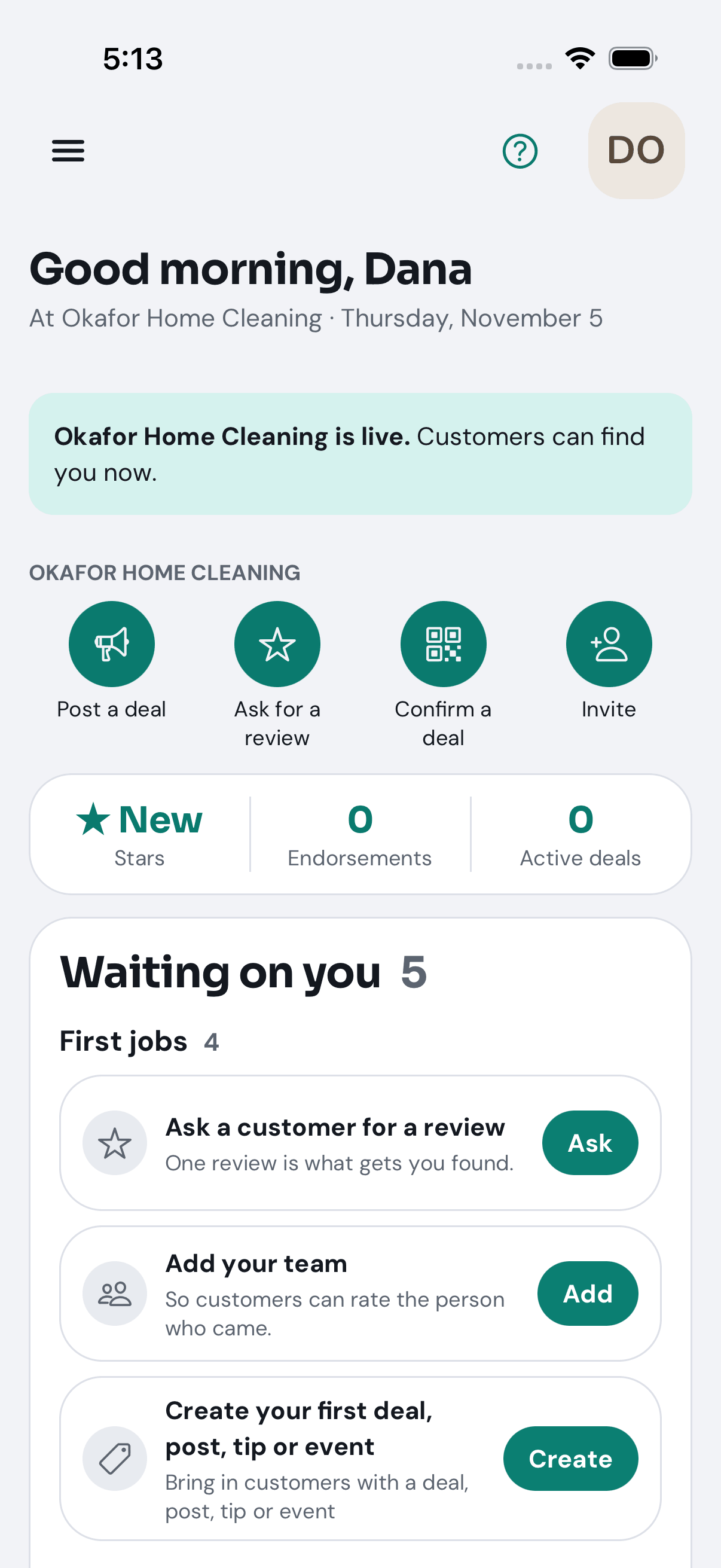
14 of 15 Okafor Home Cleaning is live. Customers can find it now.
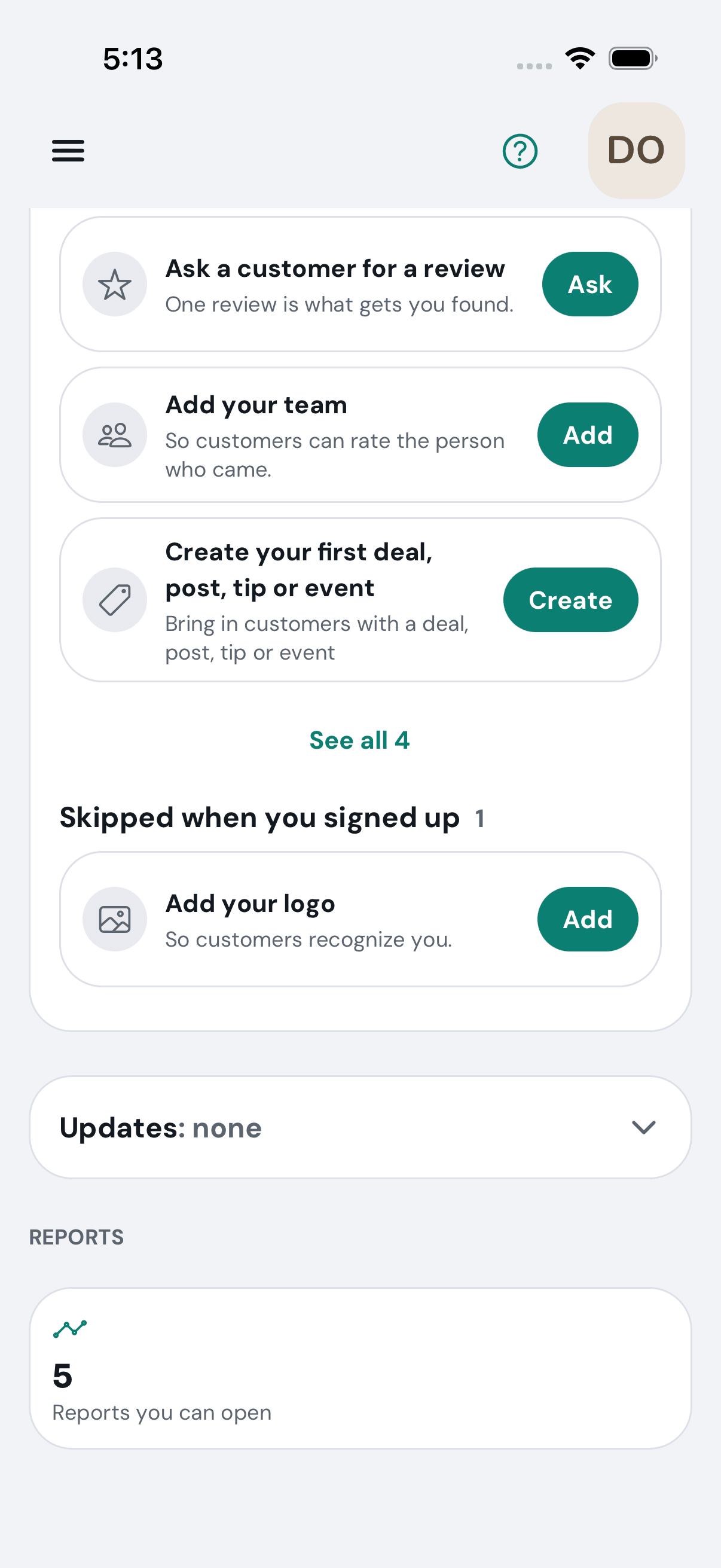
15 of 15 Her new Home lists what to do first: ask a customer for a review, add her team, post a deal.
Want the steps to do it yourself? Getting started. More tours: Build your team · Ask customers for reviews · Post a deal · Your day on Home · Start a group