
A tour · TryMyPro for Pros
Ask customers for reviews
Miles asks Dana, a member, for a review. Watch it reach her in the TryMyPro app, her review come back, and Miles approve it.
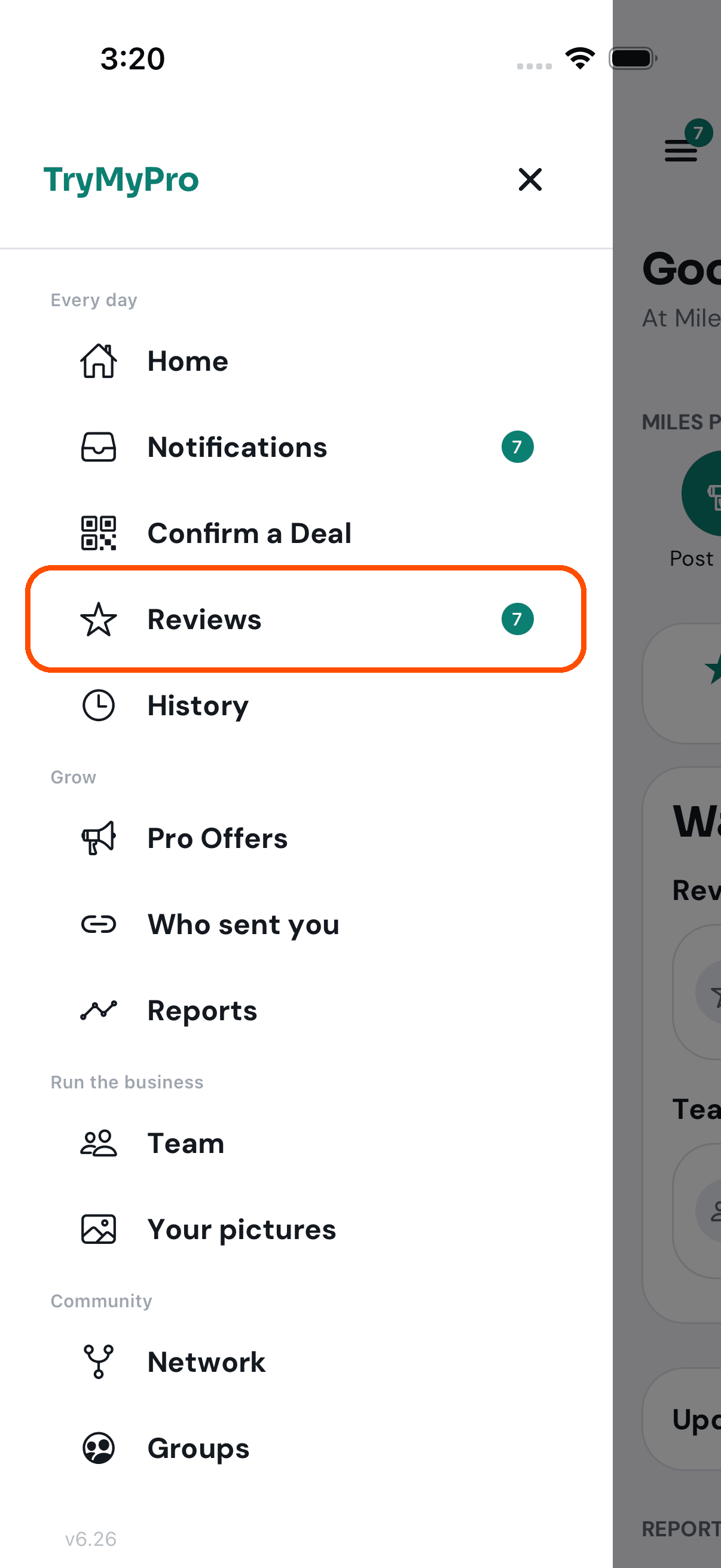
1 of 16 Miles opens the menu in TryMyPro for Pros and taps Reviews.
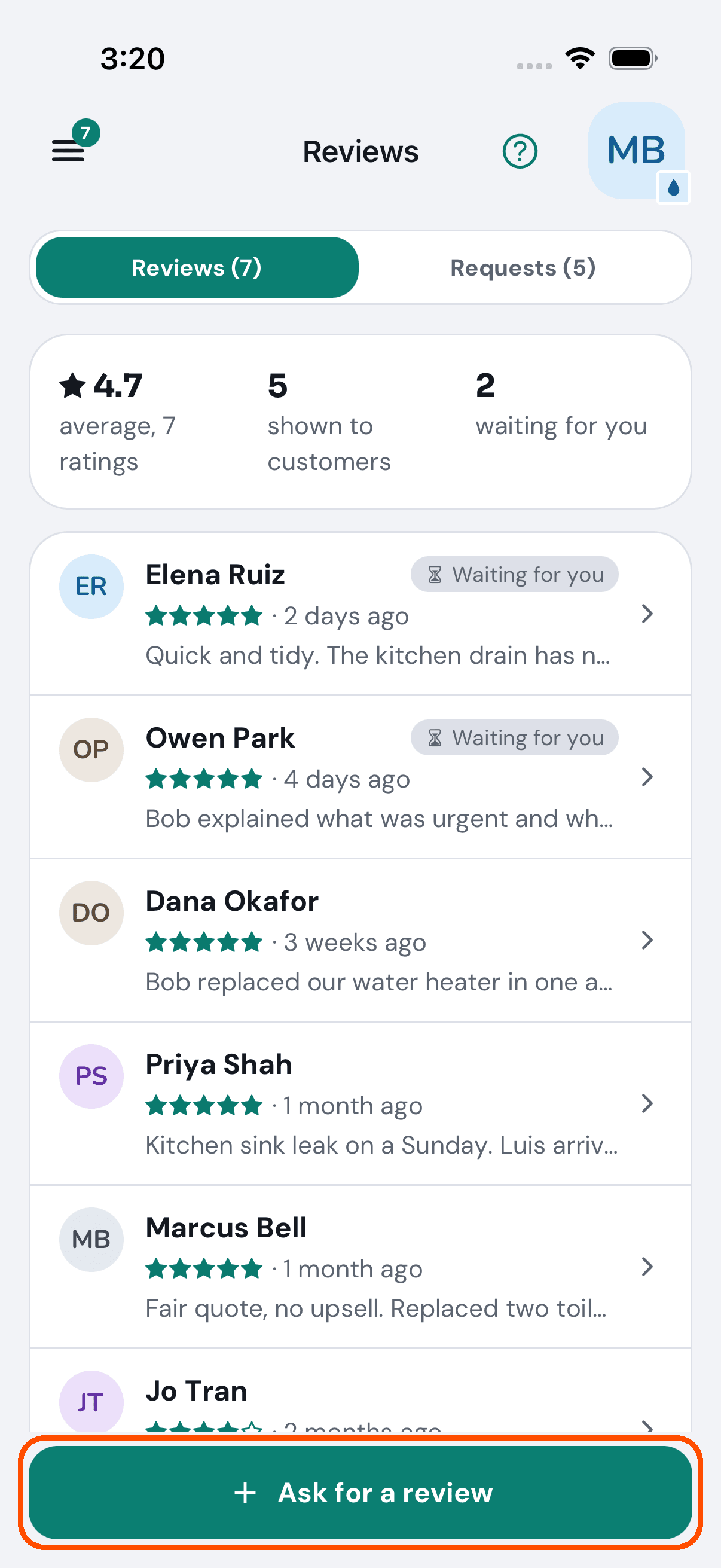
2 of 16 Reviews shows his rating, and the reviews waiting for him to approve.
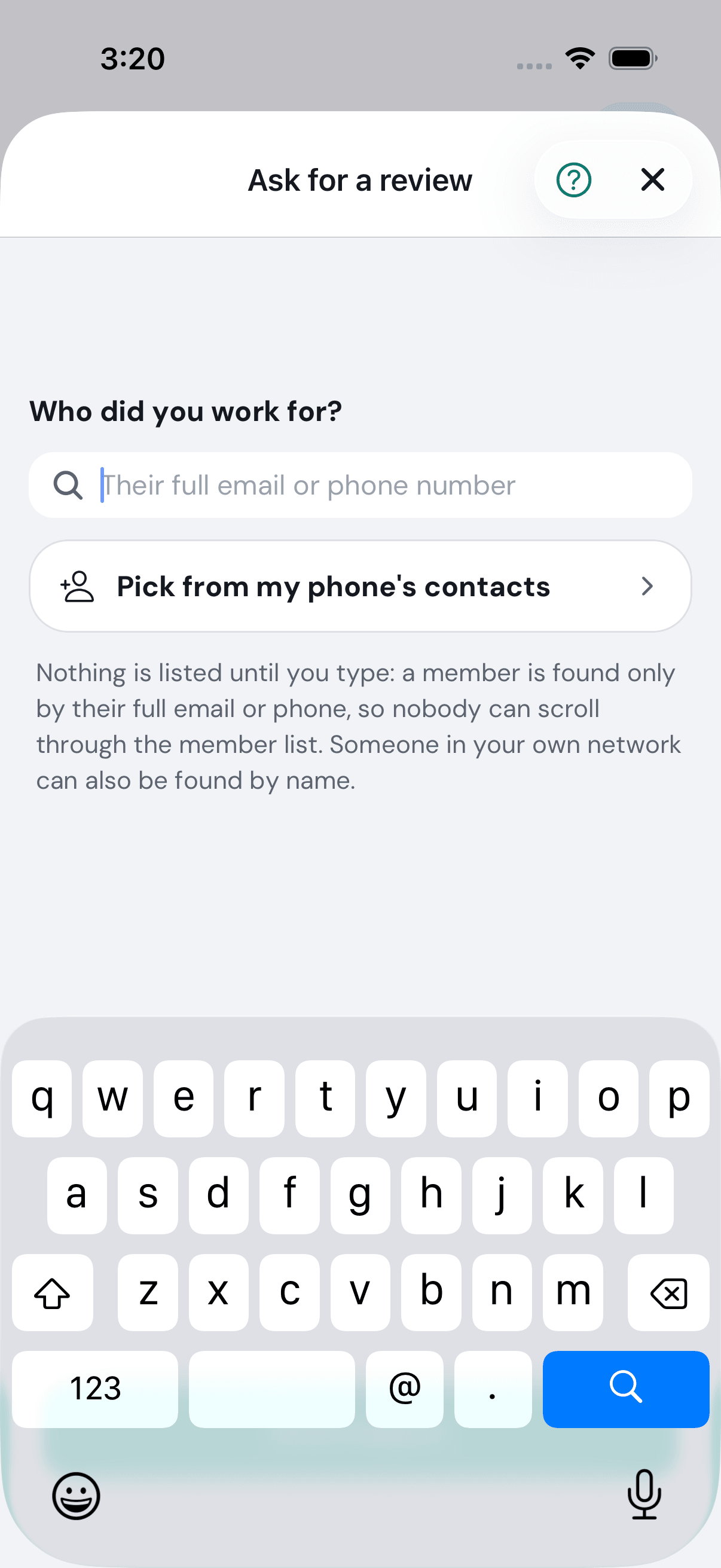
3 of 16 He taps Ask for a review: who did he work for? Their full email or phone, or the name of someone in his network.
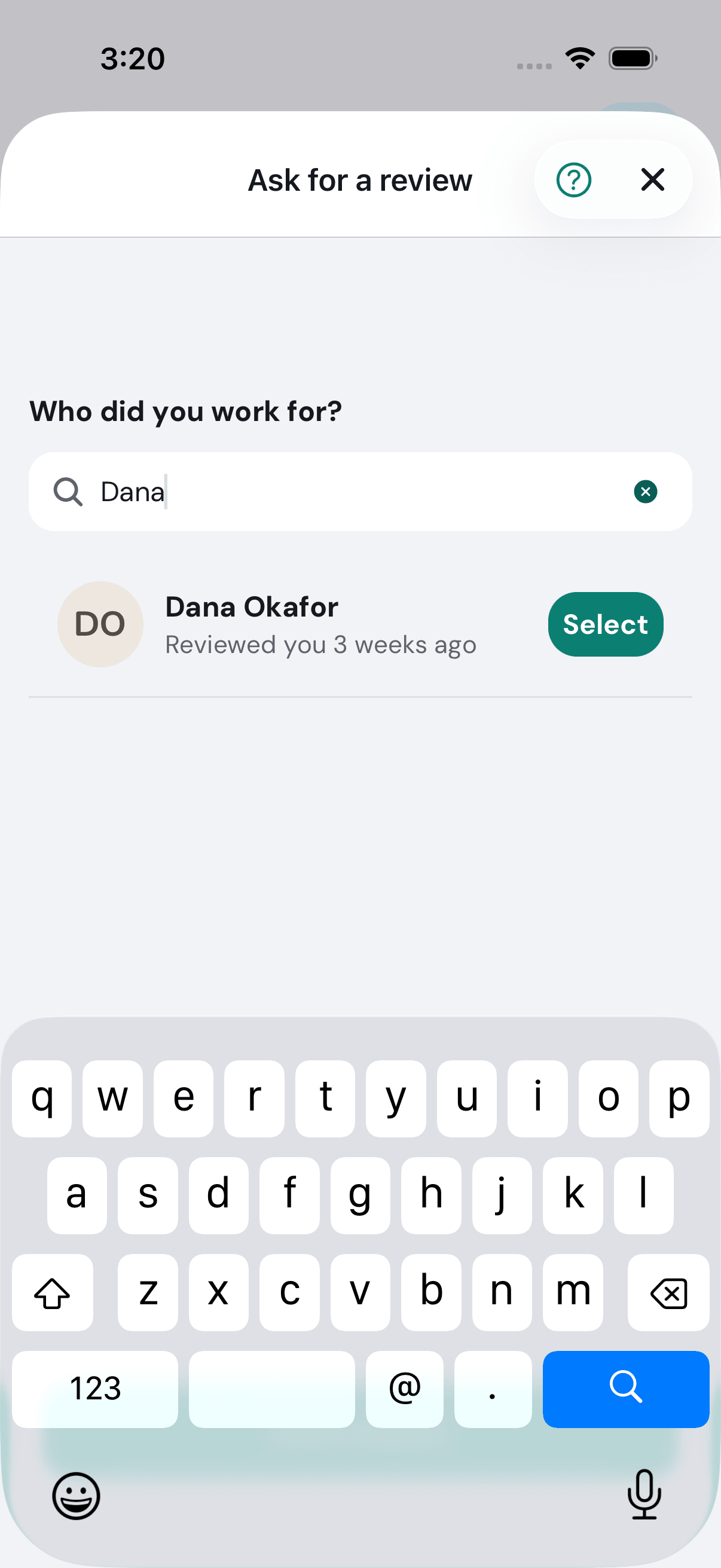
4 of 16 Dana already has an account, so she comes up by name.
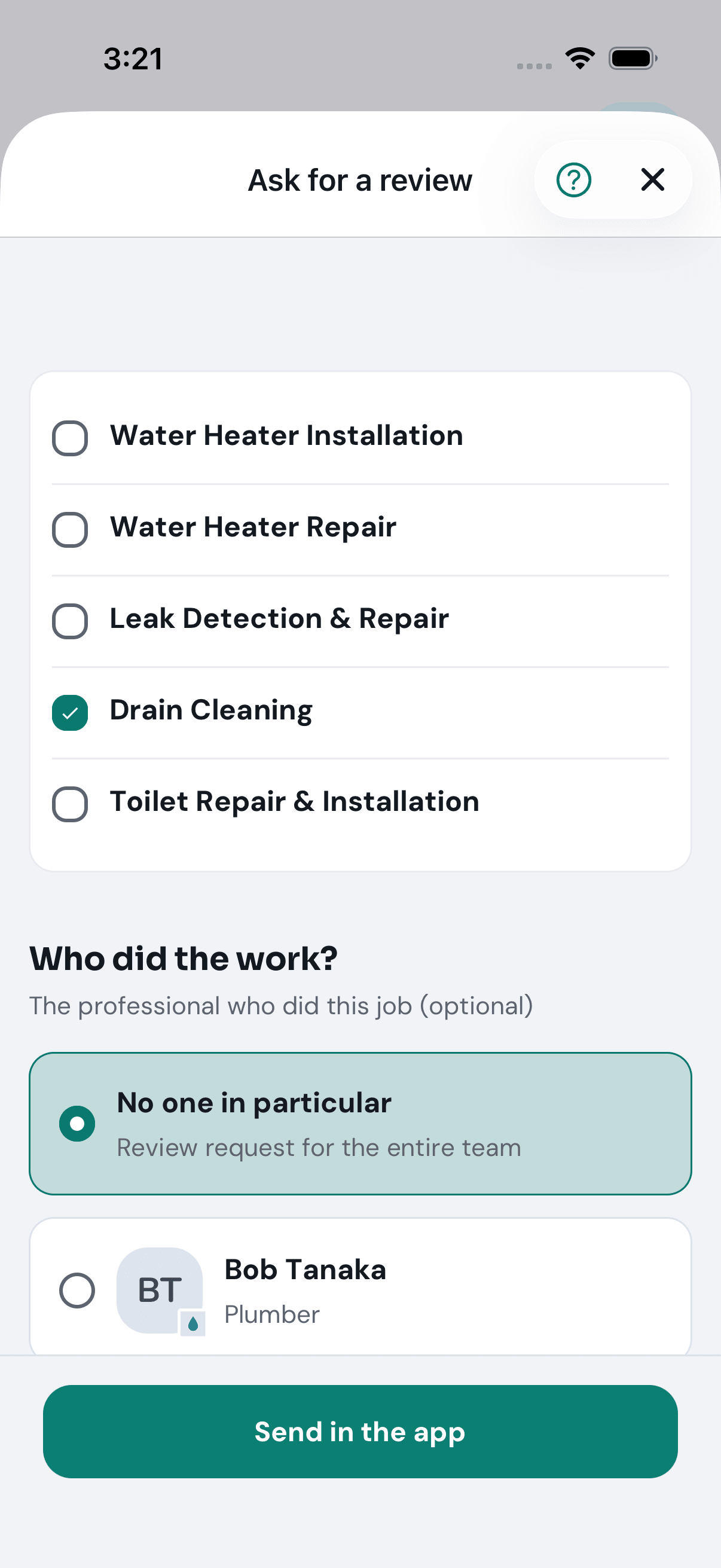
5 of 16 He picks the service it was about, Drain Cleaning, and taps Send in the app.
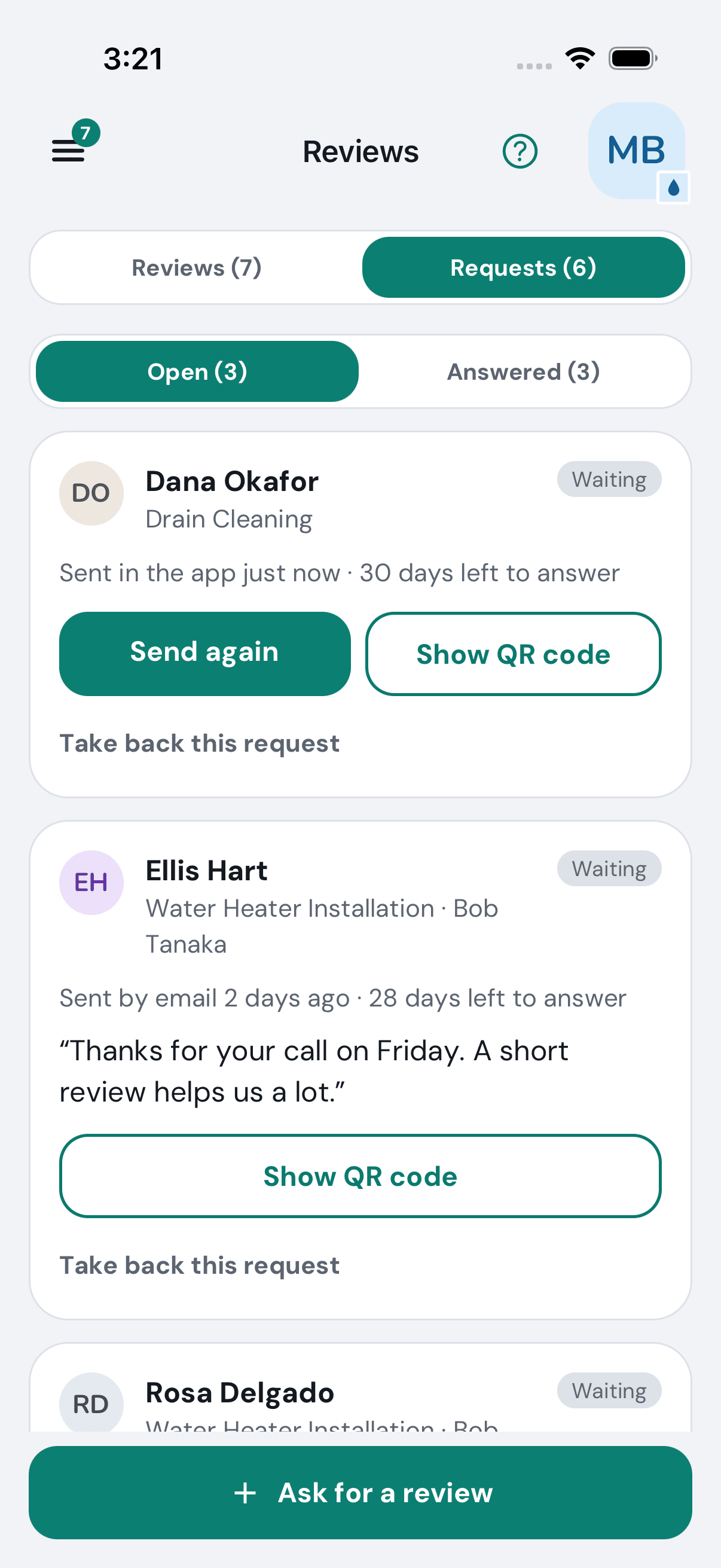
6 of 16 The request waits under Open on his Requests list, with how and when it was sent.
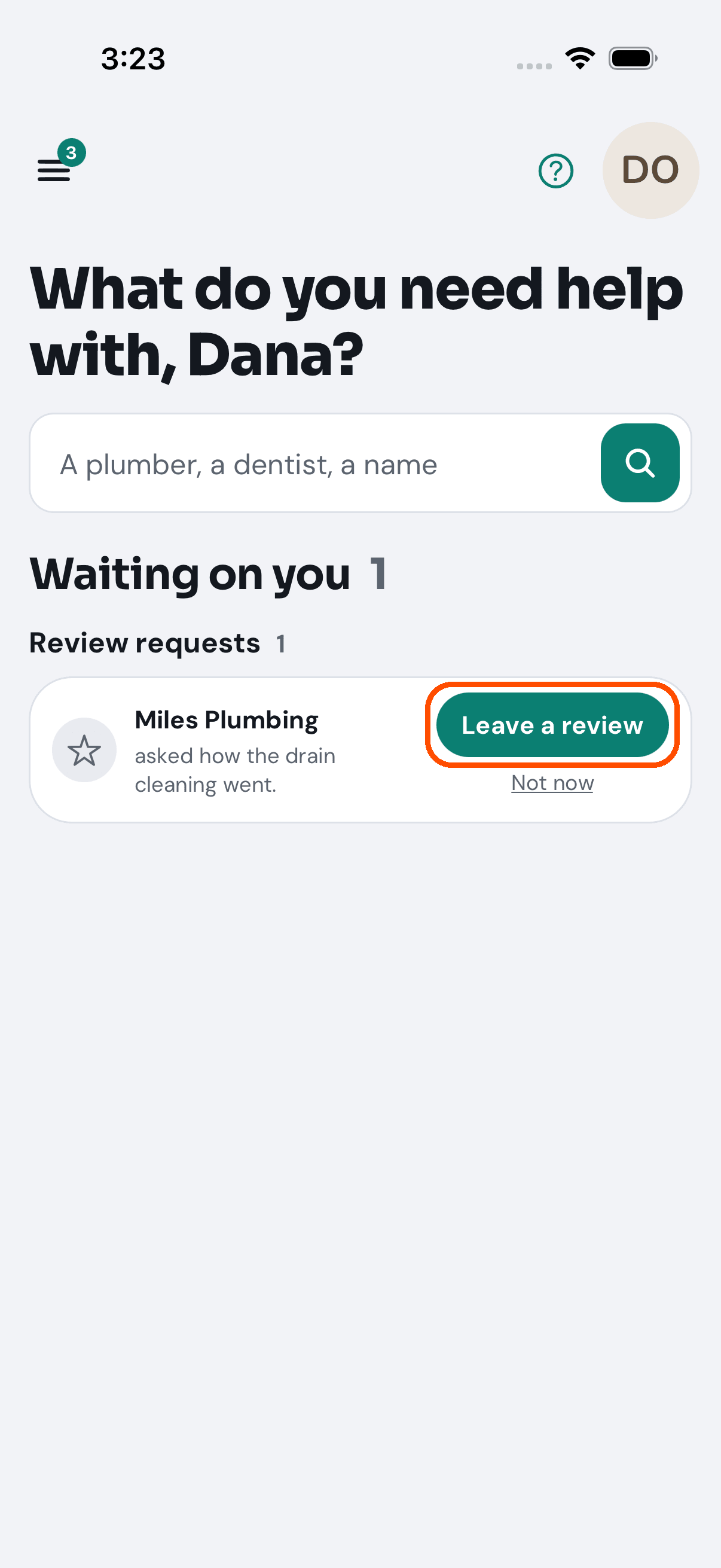
7 of 16 On Dana’s phone, in TryMyPro, it waits on her Home: Miles Plumbing asked how the drain cleaning went.
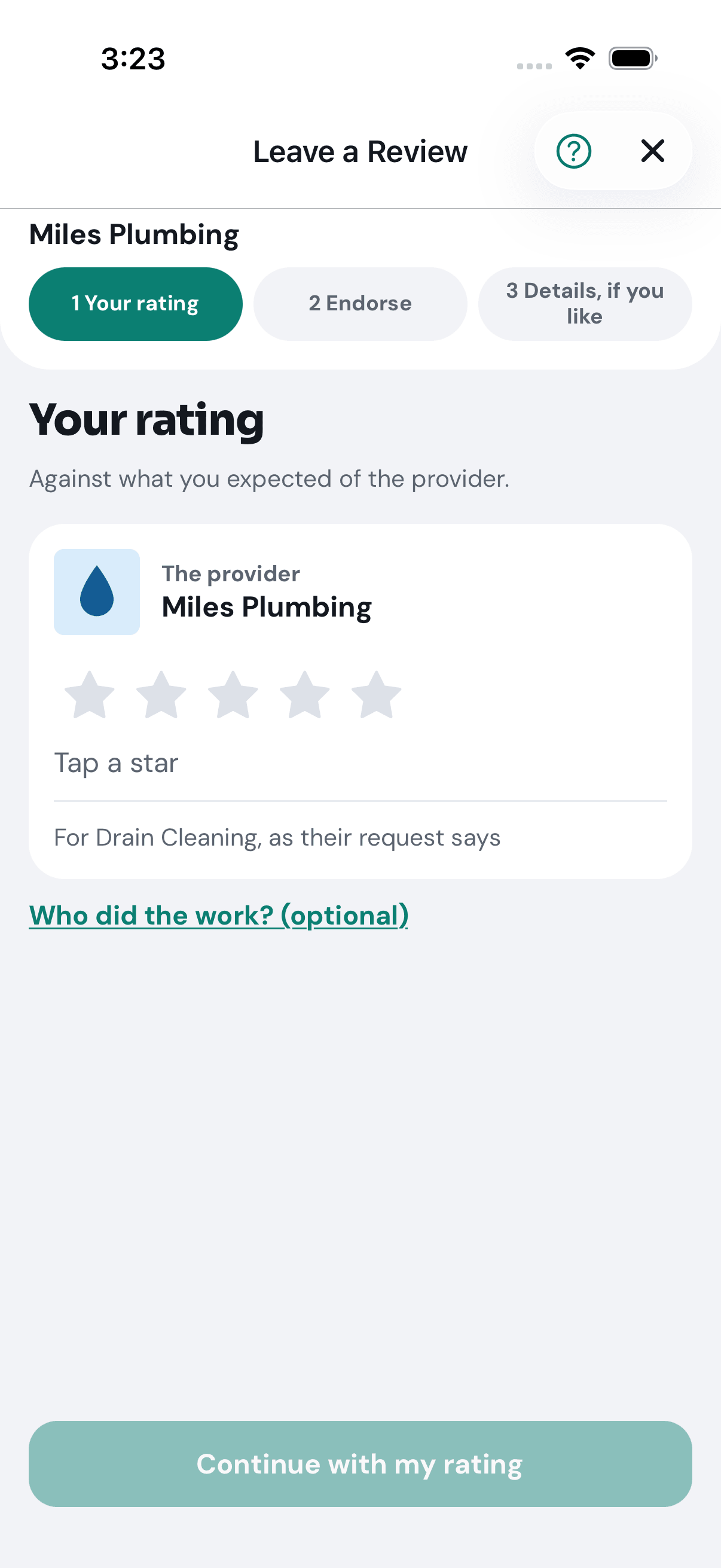
8 of 16 She taps Leave a review. First her stars for the business.
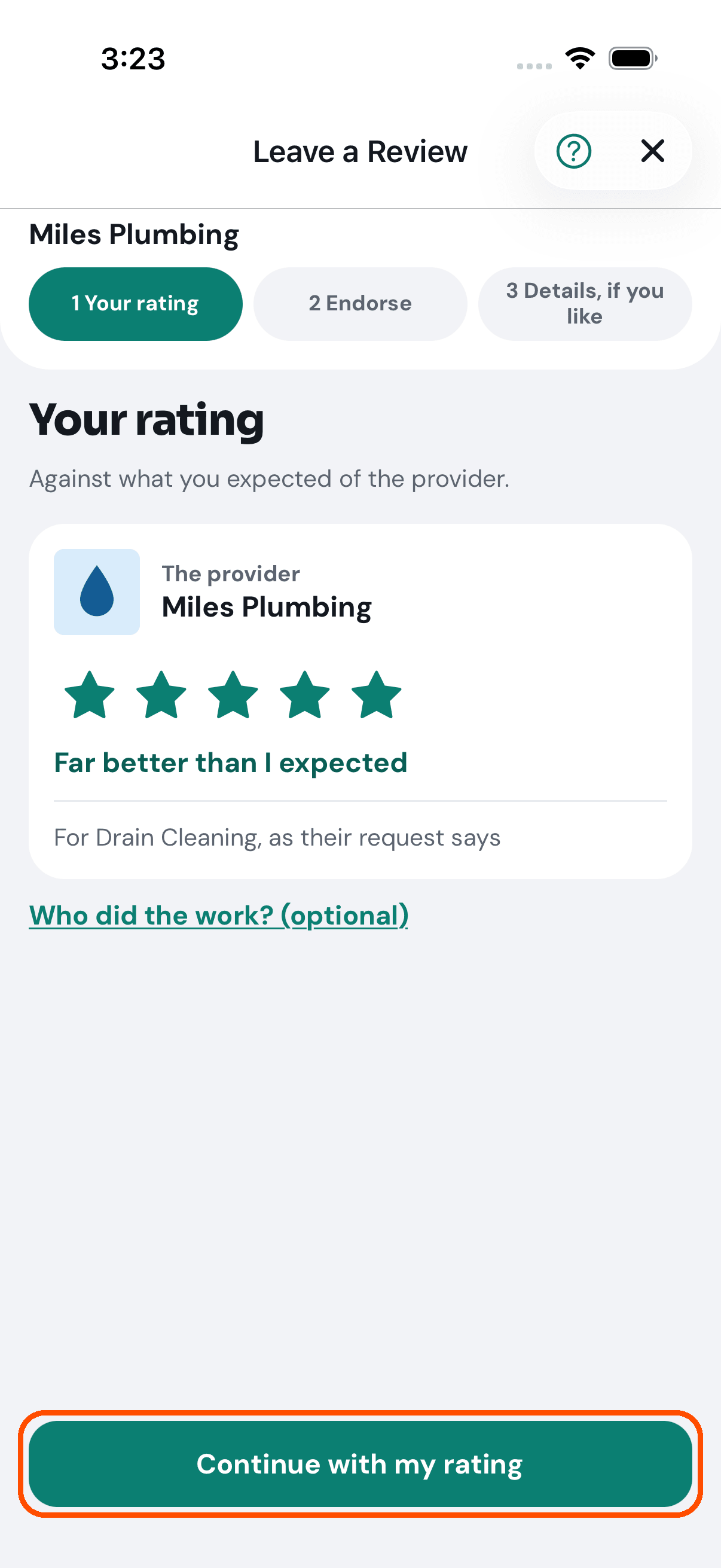
9 of 16 Five stars: far better than she expected.
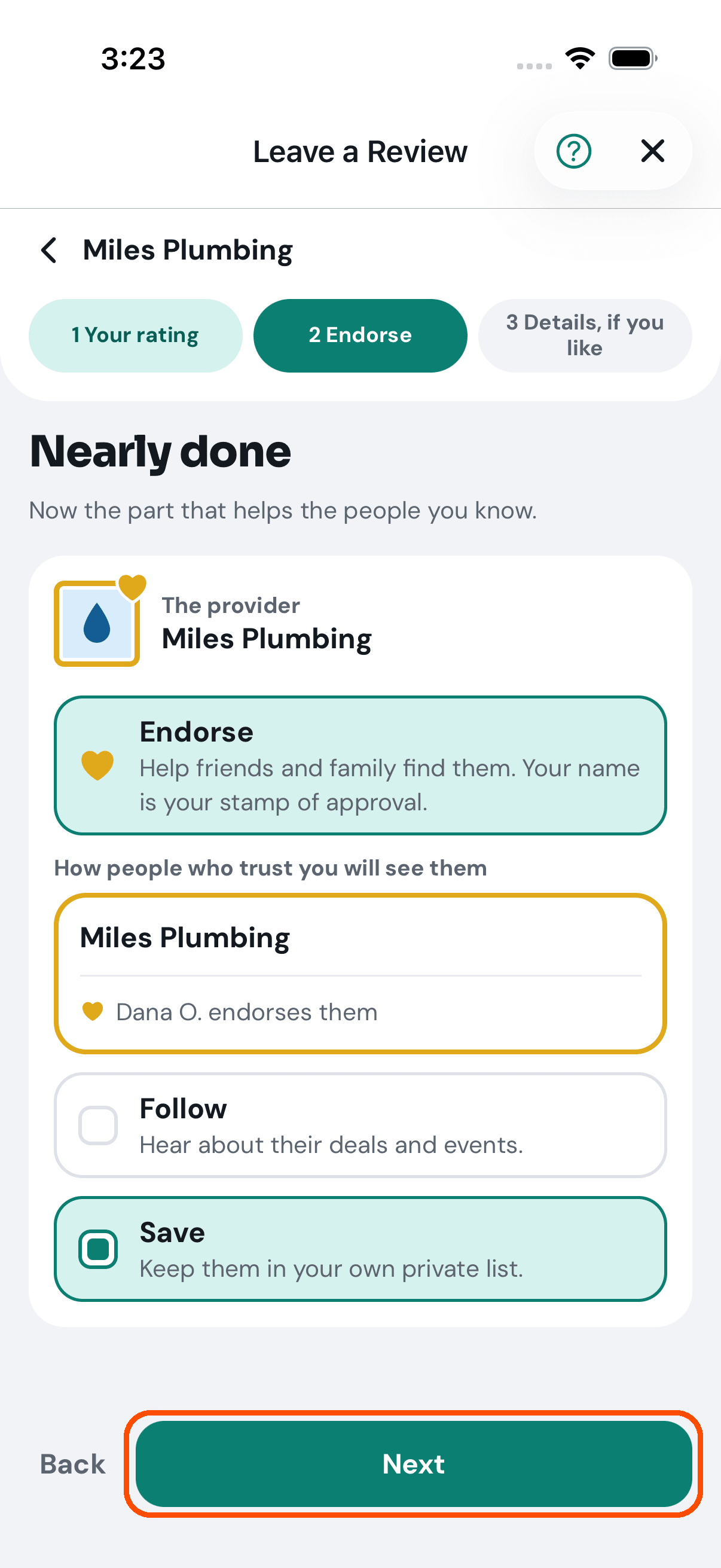
10 of 16 She can also Endorse Miles Plumbing, follow it or save it. Endorsing puts her name behind it for the people she knows.
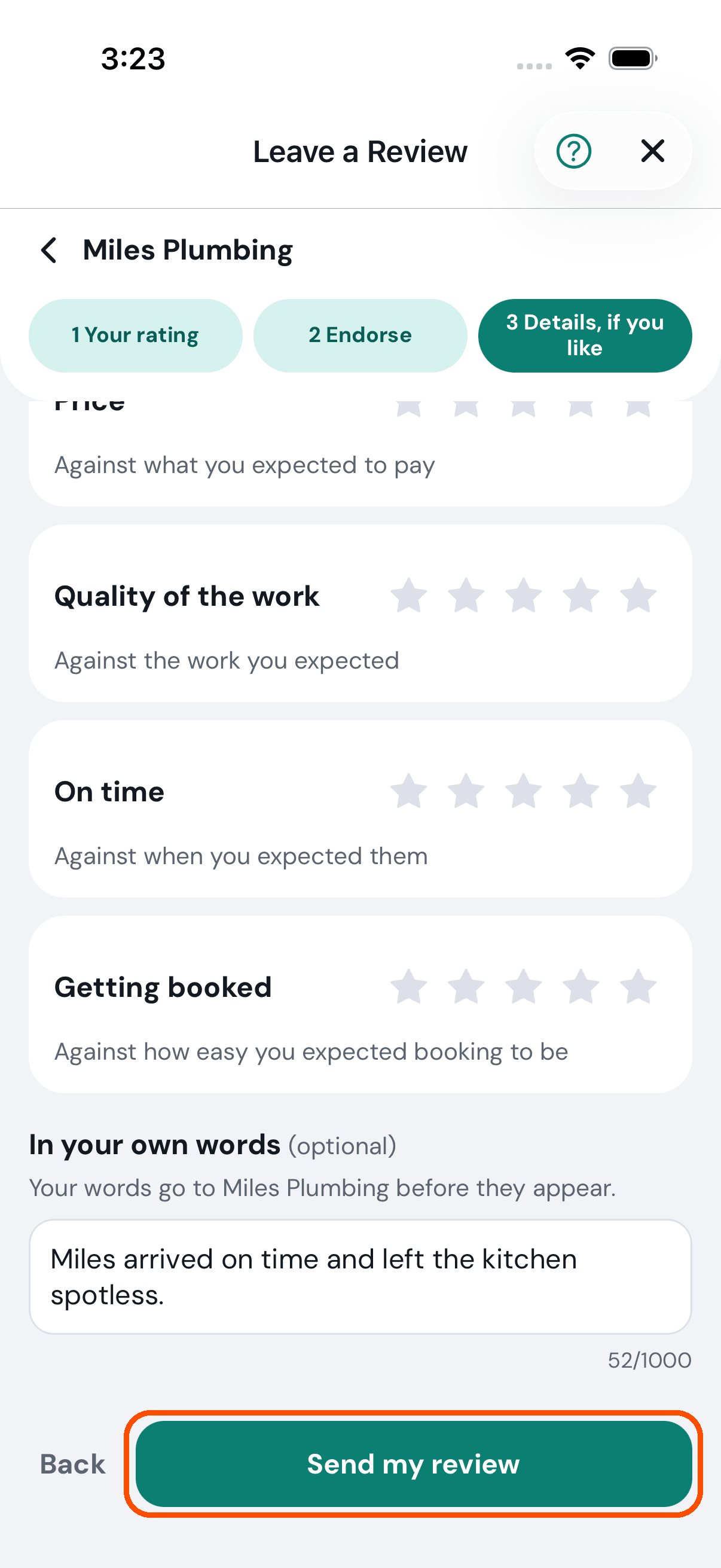
11 of 16 A few words, if she likes. They go to Miles before they appear.
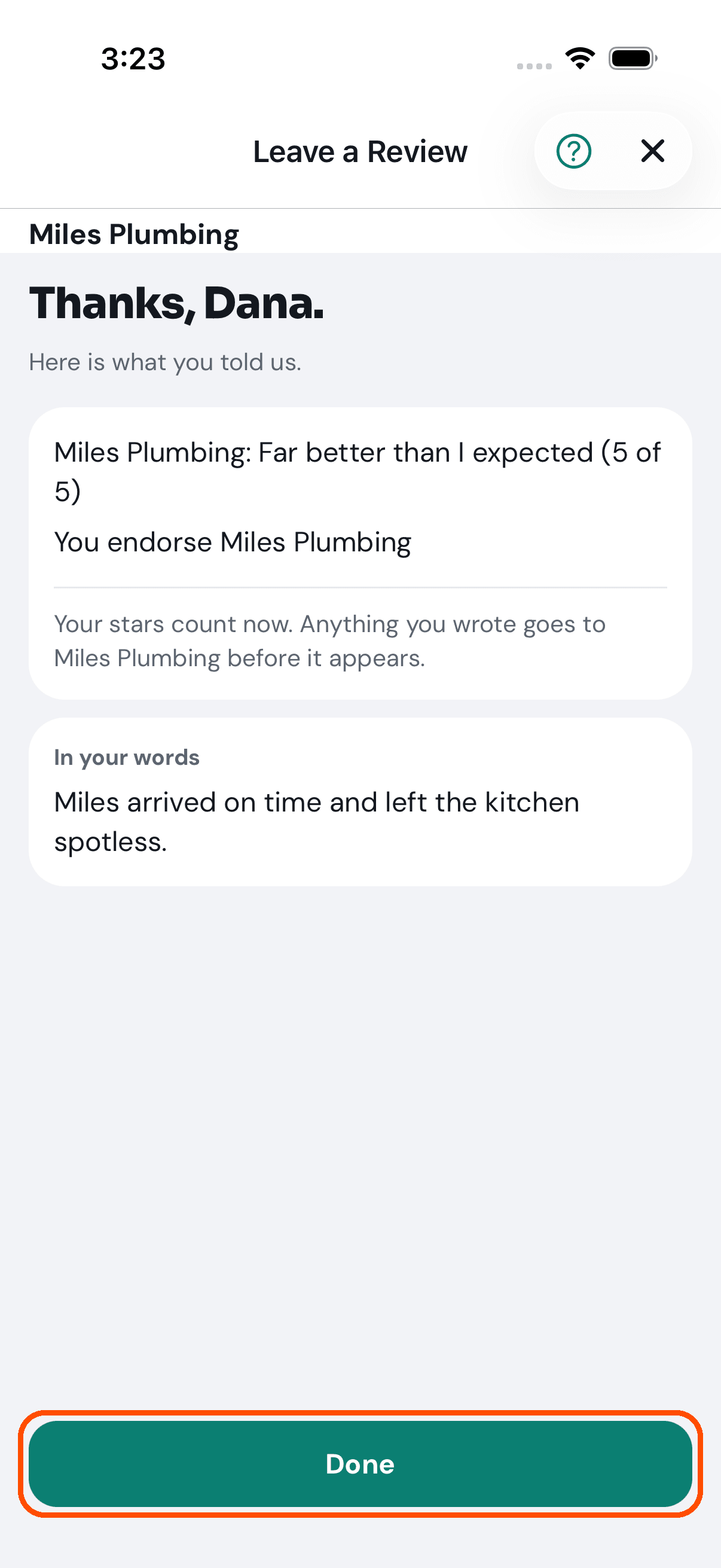
12 of 16 Sent. TryMyPro shows her what she told them.
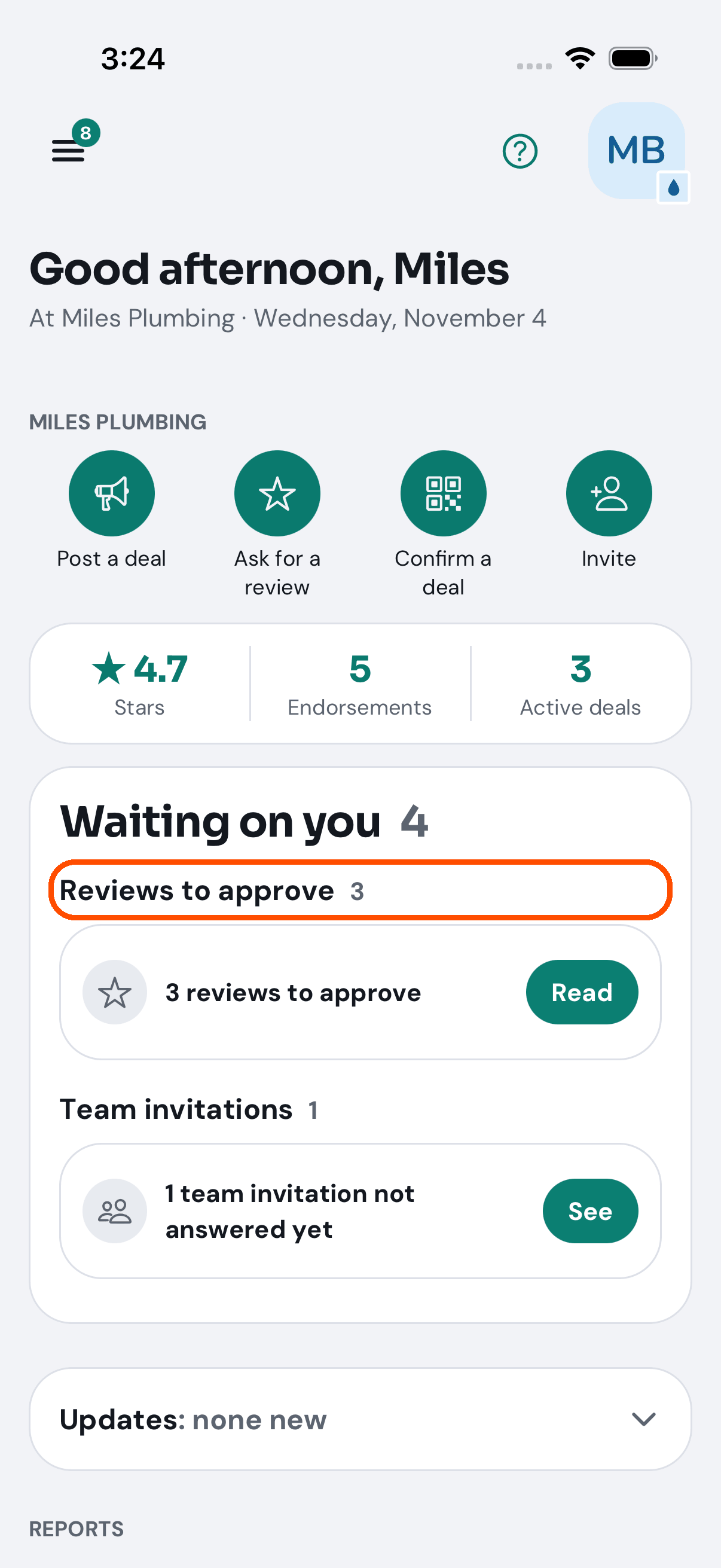
13 of 16 Back on Miles’s Home, Waiting on you now has a review to approve.
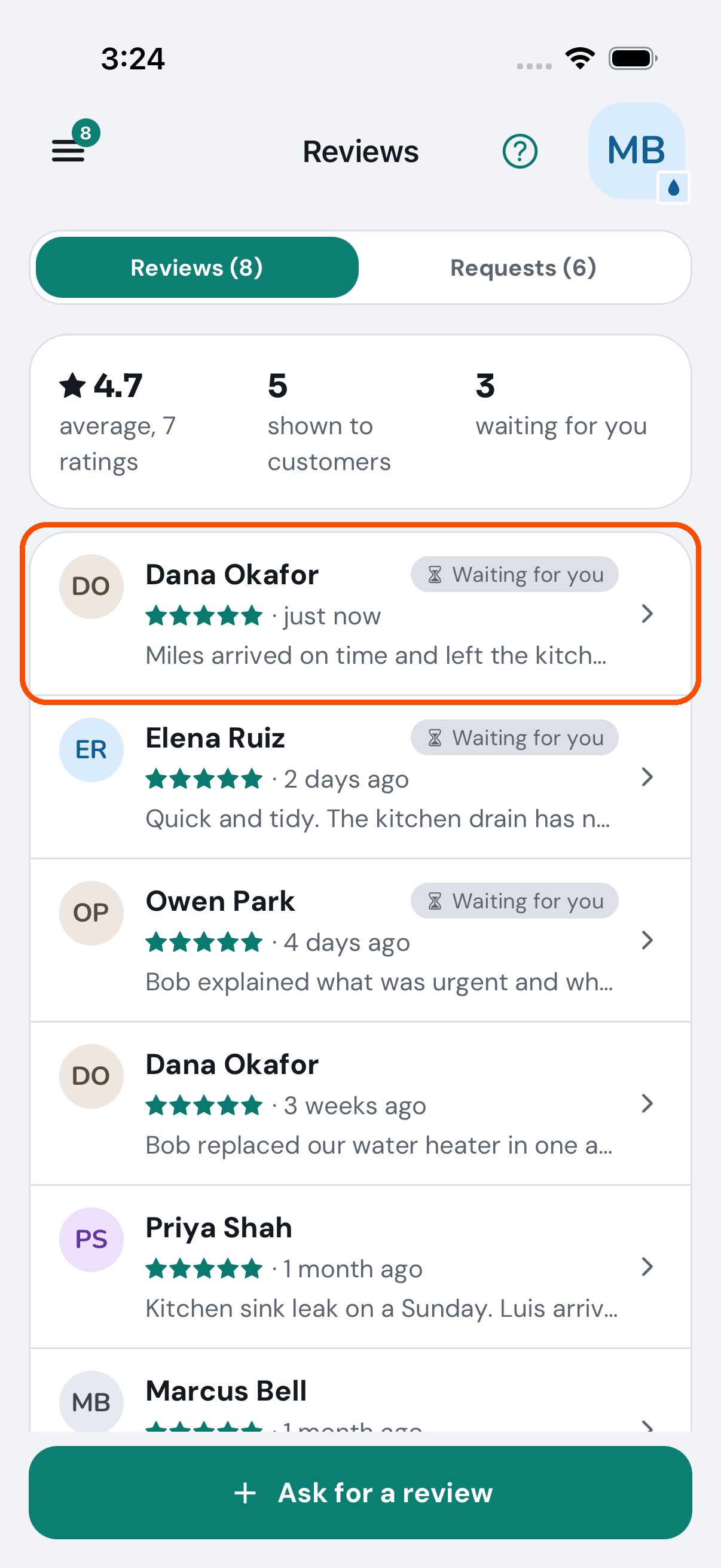
14 of 16 Dana’s review is at the top of Reviews, waiting.
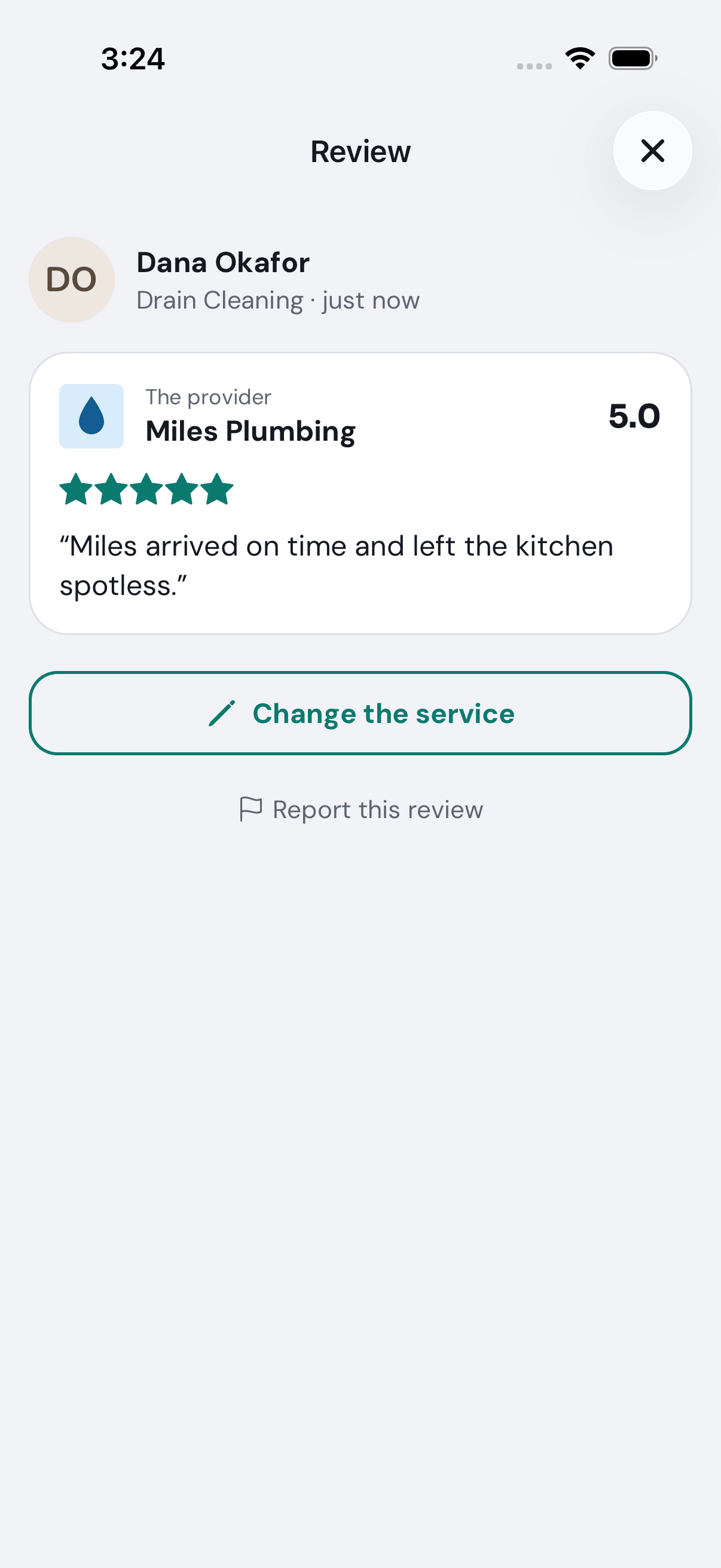
15 of 16 He opens it and taps Approve the words: the waiting note goes, and it is on his page.
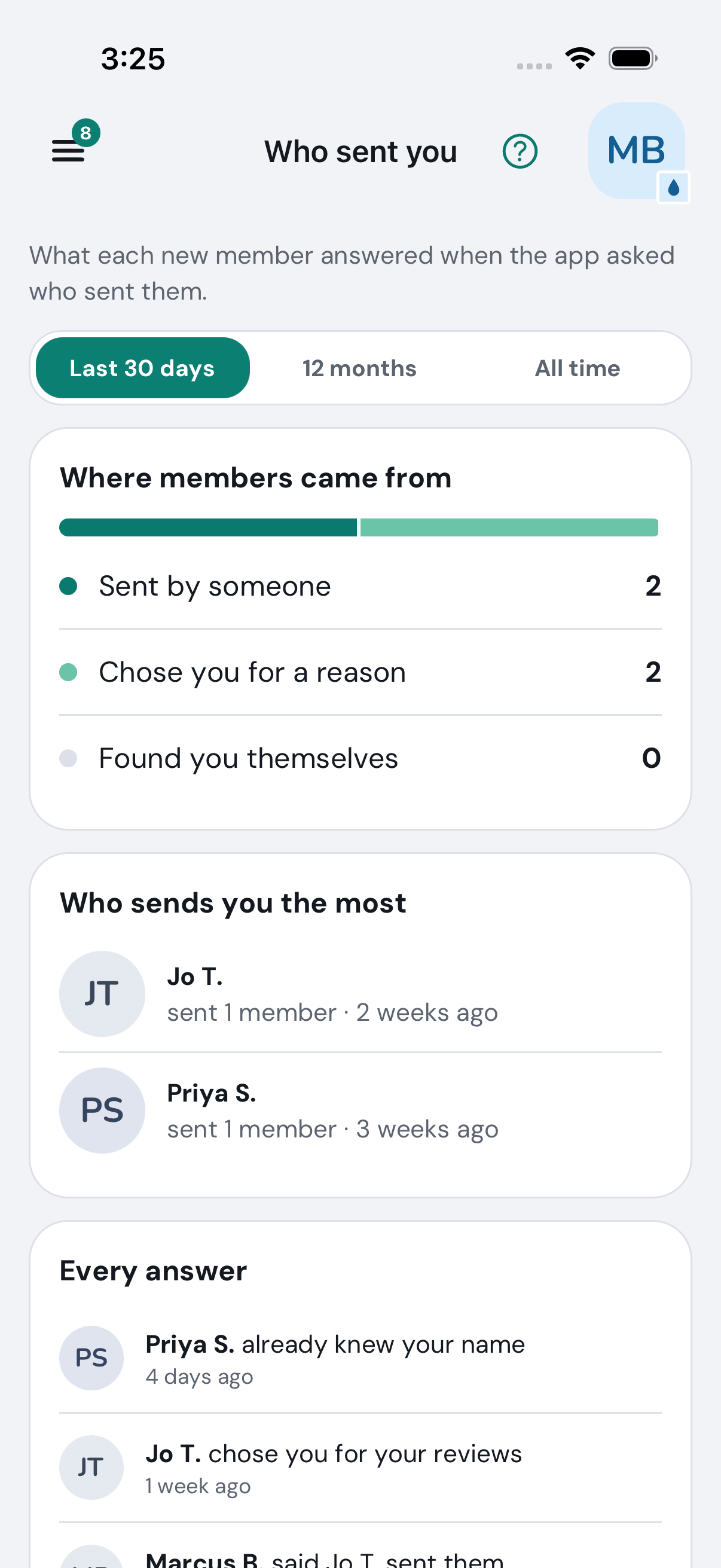
16 of 16 Who sent you shows how members found him: the people who sent them, and the reasons.
Want the steps to do it yourself? Getting started. More tours: Set up your business · Build your team · Post a deal · Your day on Home · Start a group